The Peralta Libraries allow for up to 20 pages of free printing for registered students with three printing options.
OPTION 1: PRINTING FROM LIBRARY COMPUTERS
Using a Library computer, from the browser, choose File, Print, and select the GoPrint printer.
Go to the print release station to release your print job.
OPTION 2: WIRELESS PRINTING
Select the library link for free wireless printing
or use the QR code
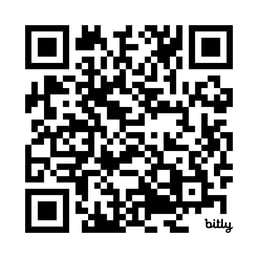
If you are not currently logged into your Peralta account, it will ask you to authenticate your account with your Peralta student email and password.
Select the Upload link.
You may upload your document a few ways:
- By browsing your device (select "Click Here to Browse") and selecting the document
- By copying in a webpage URL
- Or by dragging and dropping a File into the designated zone.
Select the Submit button when you are ready to print.
Go to the print station and input your student ID number into the ID box to log in.
The next screen will list your documents.
Select the documents to highlight them, and then select the Print button.
OPTION 3: EMAIL
Using your Peralta student email account, send an email to peralta@goprint.cloud with the document attached.
The document must be less than 5MB.
Check your email for confirmation from admin@goprint.cloud. This email will let you know if the document was successfully transmitted or if there was an error.
Go to the print release station and input your full email address into the ID box to log in.
The next screen will list your documents. This should include the documents attached in your email as well as a document titled "email body" if you had any text in the email itself.
Select the documents to highlight them, and then select the Print button.